Four views
Icons, List, Columns and Gallery, switched from the toolbar. Folders sort first, then names, the way the system sorts them.

Public beta · The second app
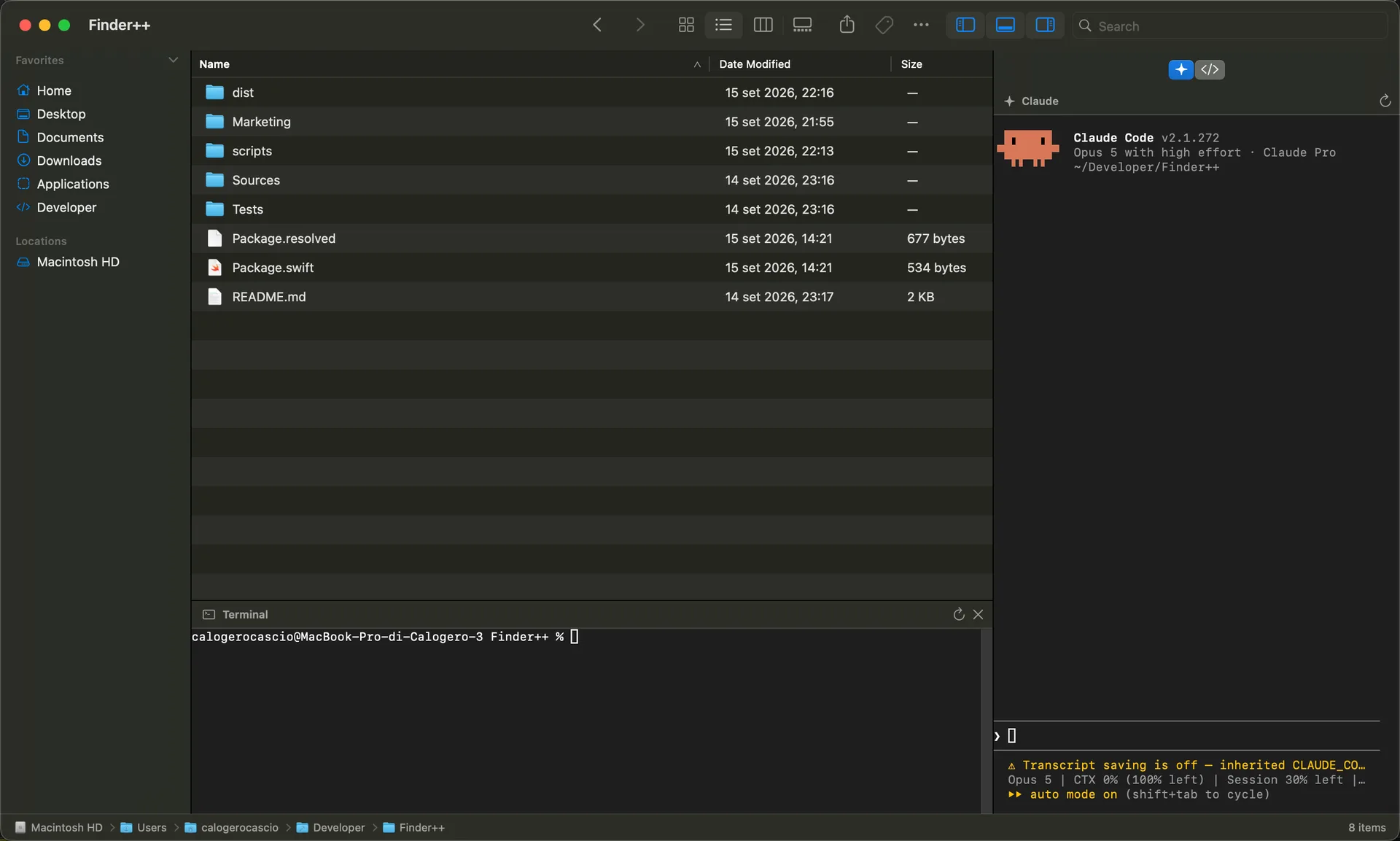
Finder++ browses files the way a Mac app should — four views, a sidebar, Quick Look, tags, the contextual menu you already know. Then it opens a real shell, Claude Code, or Codex in whatever folder is on screen, without you typing the path again. It is an early beta, and this page says where that shows.
Why it exists
Every terminal session I start begins the same way: find the folder, copy the path, change directory, start over. The folder was already open in front of me. The window that knew where I was had no way to act on it, and the window that could act on it had no idea where I was.
Finder++ closes that gap. It is a native file browser first — AppKit views, system icons, the Quick Look and Tags the rest of the Mac uses — and the terminal, Claude Code and Codex panels open in the directory the browser is showing. Change folder, restart a panel, and it is there.
It is a separate app from Linelark Notepad, downloaded separately, and installing it changes nothing about the editor. It is here because it is built by the same person, on the same principles, and because the people who wanted a terminal that follows the file are the people most likely to want this.
Read the principles behind both appsIn this build
Read off the shipping build rather than a roadmap. Everything below is in the beta you can download.
Icons, List, Columns and Gallery, switched from the toolbar. Folders sort first, then names, the way the system sorts them.
A shell panel opens below the file list, already in the directory on screen, using the login shell you already use. The View menu toggles it, or the shortcut in the next section.
A right-hand dock runs the claude and codex commands already installed on your Mac, each in the same folder, each restartable on its own.
Open With, Quick Look, Compress, Duplicate, Make Alias, Tags, Share, Get Info, Rename and Move to Trash, from the contextual menu.
Drag any folder into the sidebar, reorder it, rename what it is called. The list persists between launches.
Control-X marks files, Control-V moves them. An existing name at the destination is never replaced — that item stays pending instead.
Keyboard
Standard Mac shortcuts where the Mac has one, and a Windows-style file cut where it does not.
Read this part
Not a disclaimer. These are the specific things the build does not do yet, so you can decide whether it belongs anywhere near the files you care about.
A move is a move and a rename is a rename. Nothing here reverses them. This is the single best reason to keep the beta away from the one copy of anything.
Dotfiles are omitted from every view. There is no toggle yet.
The toolbar field narrows the folder you are in by name. It does not descend into subfolders and it does not look inside files.
A change made by another app appears after ⌘R, not on its own.
The dock runs the CLIs already installed on your Mac, under your own account and quota. Finder++ bundles neither and carries no account of its own.
It is an app you open. It does not take over double-clicks, the Desktop, or anything else the system hands to Finder.
They use the system move operation. A failure part-way through is a failure, not a transfer you can pick up again.
The part we need from you
A beta is worth running only if what it does wrong gets back to the person who can fix it. The contribution page has a form for exactly this — pick Test report, and say which macOS version, which Mac, the steps you took, and what happened instead. A reproduction is worth more than a description, because it is the half that is hard.