Find large files.
Review files and apps by size, then choose what to remove.


Cleaner for Mac
Monitor resources from your menu bar.
Find large files, duplicates, apps you no longer need and forgotten AI coding sessions.
Version 1.1.1 · macOS 14 or later · Apple silicon and Intel
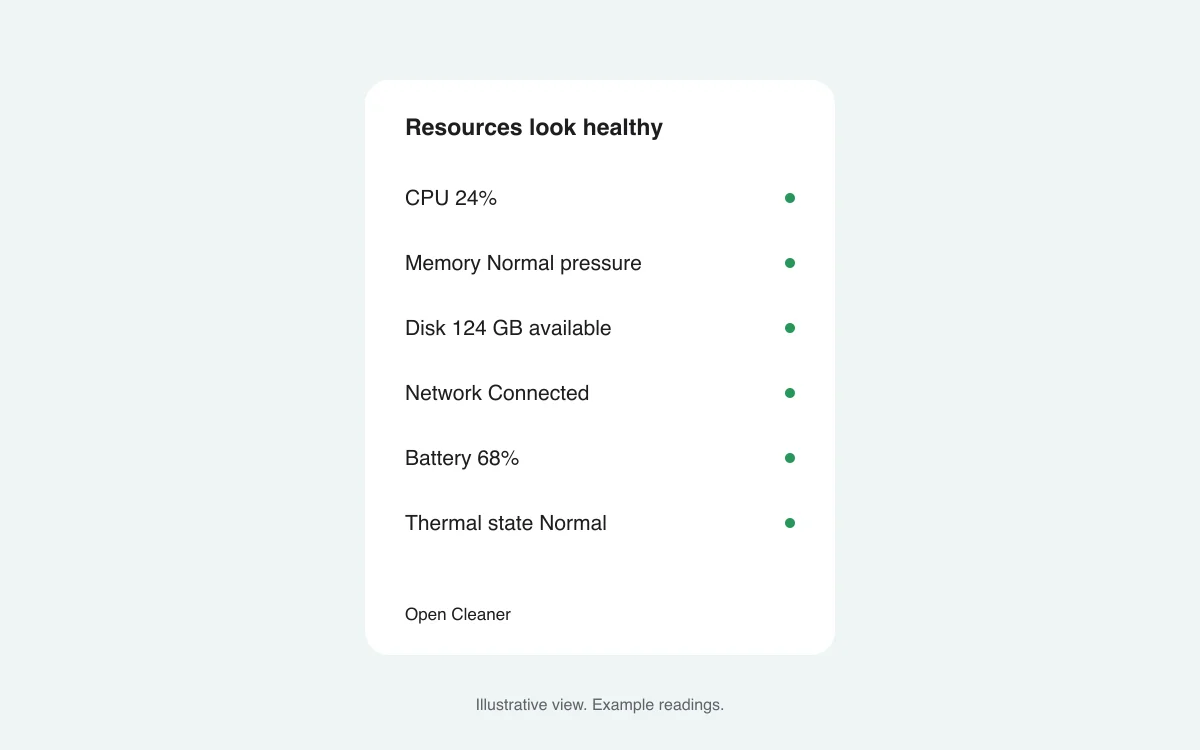
Illustrative view. Example readings.
Check CPU, memory, disk, network, battery and thermal state in one place. A coloured indicator shows when something needs attention. Click a resource to see the details.
Green means normal. Orange asks for a closer look. Red flags a critical condition. Brief spikes have time to settle before an alert changes.
Find large files, spot duplicates and review app leftovers. See what you’ve selected before you clean. Recoverable items go to the Trash; selected caches and logs may be removed permanently.
Review files and apps by size, then choose what to remove.
Review startup items. Filter the list to the ones Cleaner can switch on or off.
Look at memory pressure and the apps behind it. A full memory bar alone doesn’t mean something is wrong.
Close the main window and monitoring stays in the menu bar. Enable launch at login to start monitoring automatically.
Updates slow down in the background and in Low Power Mode. Monitoring pauses when the display sleeps. Network readings use existing traffic counters, without running speed tests.
New in Cleaner 1.1
Coding agents like Claude Code, Codex and Pi keep running after you stop using them. Two open windows can hide eight sessions in memory.
Cleaner lists every session with its project folder, its terminal and the memory it holds. It shows which ones you’re using and which have gone quiet. Shut down one, or every idle one at once.
Cleaner helps you understand resource use and reclaim storage. Results depend on your workload and the changes you choose. It doesn’t promise a speed boost from routine memory or cache clearing.
Resource monitoring does not require administrator privileges. Some maintenance actions do, and macOS asks for authorization when you run them. Full Disk Access can be needed to scan protected folders.
Shut Down asks the session to exit, as closing its terminal would. A task in progress stops, but the conversation stays on disk and most tools can resume it. Force Quit stops the session and its helper processes at once. Cleaner asks before doing either.
Claude Code, Codex, Pi, OpenCode, Gemini CLI, Aider, Amp, Cursor Agent, Goose, Crush, Qwen Code and Droid, whether they run as a native app or through Node or Python. Only your own processes are listed.
Yes. Monitoring continues in the menu bar. Choose Quit Cleaner to stop it. Automatic startup can be managed in Settings.
Download Cleaner 1.1.1 for Mac. Signed with Developer ID and notarized by Apple.
For macOS 14 or later. Apple silicon and Intel.
Download Cleaner