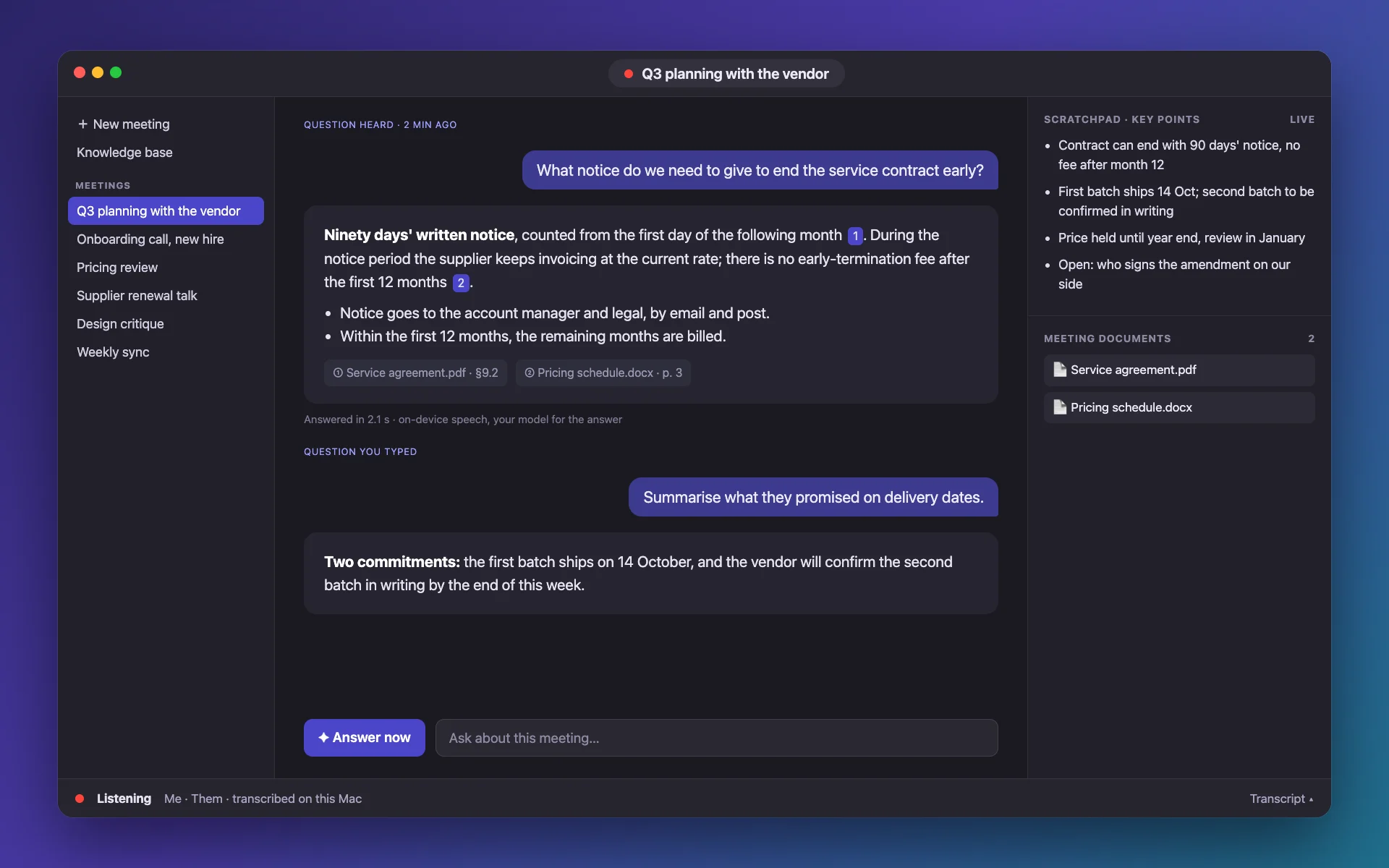
The question is asked. Your documents already know the answer.
Drop the files that matter onto a meeting. When someone asks something, press ⌃⌥Space: Meeting Assistant finds the question in the transcript, searches your documents and answers in a few lines, with the passage it used.
Direct download · version 0.1.0 · 3.6 MB · macOS 26 or later, Apple silicon · notarized by Apple.
An illustration drawn from the app’s layout, with fictional content.
How it helps
How it helps
Give it the right documents
PDF, Word, RTF, Markdown, text, HTML and CSV. Files dropped on a meeting are used only by that meeting; the shared knowledge base serves every meeting.
Per-meeting and shared documents
Replace a file by dropping a new one
Deleting a meeting deletes its files
It finds the question for you
The model reads the last minutes of the transcript, picks the latest question and writes keyword searches that can bridge synonyms and even languages between the call and your files.
Hotkey ⌃⌥Space, or ⌃⌥Q to type
Last 5 minutes by default, 1 to 20 in Settings
Edit the question and ask again
A short answer, with sources
Search combines keywords and on-device semantic matching, then the model answers from the passages found, citing them as [1], [2]. If nothing matches, it says so instead of guessing.
Sources shown with each answer
Streamed, timed step by step
Copy, regenerate or delete any answer
Questions
Does it make up sources?
No. It cites only passages found in your documents. With no documents loaded it warns you that answers will be generic.
Which models can answer?
Apple’s on-device model, your ChatGPT plan, an OpenAI-compatible API or Claude, chosen in Settings.
Is the answer panel visible to the people I am talking to?
The floating panel uses a macOS setting that keeps it out of screen sharing and recordings. Test with your call app first.
What file types can I use?
PDF, Word, RTF, Markdown, plain text, HTML and CSV. A scanned PDF needs a text layer first.