Four views
Icons, List, Columns and Gallery, from the toolbar or ⌘1–⌘4. Icon and Gallery draw Quick Look previews of the files themselves, not the generic type icon.

Public beta · The second app
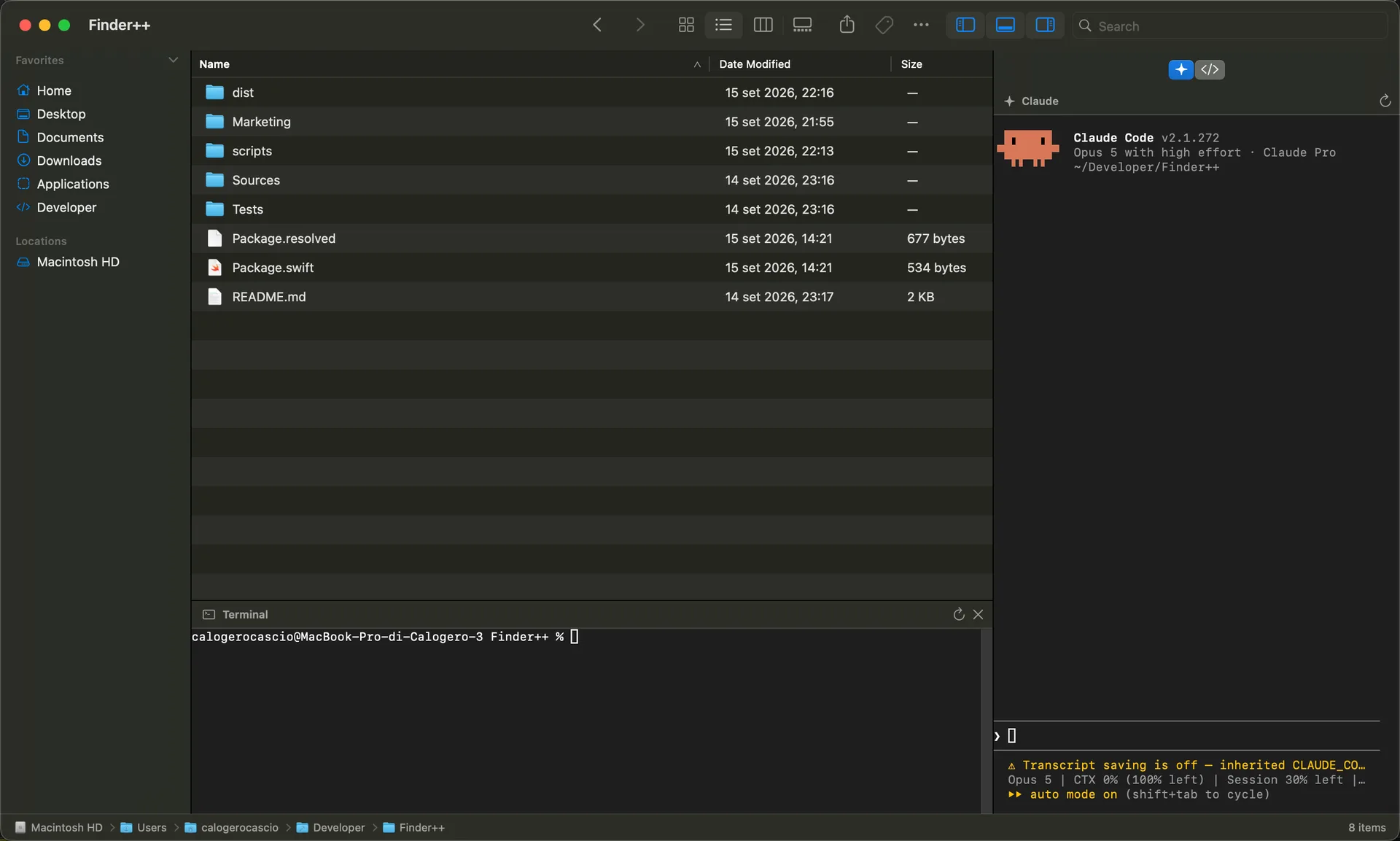
Finder++ browses files the way a Mac app should — four views, a sidebar, Quick Look, tags, the contextual menu you already know. Then it opens a real shell, Claude Code, or Codex in whatever folder is on screen, without you typing the path again. It is an early beta, and this page says where that shows.
Why it exists
Every terminal session I start begins the same way: find the folder, copy the path, change directory, start over. The folder was already open in front of me. The window that knew where I was had no way to act on it, and the window that could act on it had no idea where I was.
Finder++ closes that gap. It is a native file browser first — AppKit views, system icons, the Quick Look and Tags the rest of the Mac uses — and the terminal, Claude Code and Codex panels open in the directory the browser is showing. Change folder, restart a panel, and it is there.
It is a separate app from Linelark Notepad, downloaded separately, and installing it changes nothing about the editor. It is here because it is built by the same person, on the same principles, and because the people who wanted a terminal that follows the file are the people most likely to want this.
Read the principles behind both appsIn this build
Read off the shipping build rather than a roadmap. Everything below is in the beta you can download.
Icons, List, Columns and Gallery, from the toolbar or ⌘1–⌘4. Icon and Gallery draw Quick Look previews of the files themselves, not the generic type icon.
A shell panel opens below the file list, already in the directory on screen, using the login shell you already use.
A right-hand dock runs the claude and codex commands already installed on your Mac, each in the same folder, each restartable on its own.
The toolbar field filters what is on screen. The list under it offers what filtering cannot answer — names or contents, this folder’s tree or the whole Mac — and runs it through Spotlight.
A file written by another app, a sync client, or a command in the terminal panel below appears within about half a second. No refresh.
A move, a rename, a New Folder and a Move to Trash can be taken back. A copy, a duplicate, a compress and a Make Alias cannot.
Control-X marks files, Control-V moves them, and an existing name at the destination is never replaced — that item stays pending instead.
The last folder, the view mode and which panels were open all come back on the next launch.
Drag any folder into the sidebar, reorder it, rename what it is called. The list persists with its order, names and icons.
Coming from Windows
Three things on a Mac cost a Windows habit every time. Finder++ keeps the habit — and keeps everything else where a Mac user expects it, so neither of you has to relearn the other’s machine.
Press ⌘L, or click the path trail where the crumbs are not, and it becomes a field holding the current path — completing folder names against the disk as you type. Finder gives you a modal Go to Folder prompt with no completion; this is the address bar.
Control-X marks the selection and Control-V moves it, exactly as it does in Explorer. Finder has no cut: it makes you copy and then press ⌥⌘V somewhere else, which is the single habit Windows users report missing most.
Every folder in the sidebar has a disclosure chevron, so you can drill down in place without changing what the main view is showing. Finder’s sidebar is a flat list of favourites that cannot expand.
Everything else is the Mac you already have: the four views, Quick Look on the spacebar, Tags, Share, Get Info and the contextual menu are Finder’s, not a reimplementation of them.
Keyboard
Standard Mac shortcuts where the Mac has one, and a Windows-style file cut where it does not.
Read this part
Not a disclaimer. These are the specific things the build does not do yet, so you can decide whether it belongs anywhere near the files you care about.
A move, a rename, a New Folder and a Move to Trash can be undone. A copy, a duplicate, a compress and a Make Alias cannot — those are done when they are done. Undo and drag and drop are also the newest things in the build and the least exercised, so keep the beta away from the one copy of anything.
It works in the list and the icon grid, not the gallery filmstrip or the column browser, and there is no Option-to-copy modifier yet.
At most 1000 files come back, nothing can be created in them or pasted into them, and they are only as good as the Spotlight index behind them.
Each is read when opened and re-read on ⌘R rather than followed live, and all of them are empty if Spotlight is off or the volume is not indexed.
`~/.Trash` sits behind Full Disk Access, which no app is allowed to ask for — you grant it in System Settings or not at all. Without it, the row hands the Trash to Finder.
The dock runs the CLIs already installed on your Mac, under your own account and quota. Finder++ bundles neither and carries no account of its own.
It is an app you open. It does not take over double-clicks, the Desktop, or anything else the system hands to Finder.
They use the system move operation. A failure part-way through is a failure, not a transfer you can pick up again.
In more detail
The part we need from you
A beta is worth running only if what it does wrong gets back to the person who can fix it. The contribution page has a form for exactly this — pick Test report, and say which macOS version, which Mac, the steps you took, and what happened instead. A reproduction is worth more than a description, because it is the half that is hard.