Slides in from either edge
Left by default, or right. The panel animates in and out, with the two corners away from the edge rounded.
0.1.0
Features
Each row says what the capability does and the version it arrived in. Nothing is listed that is not in the build you can download.
Read the documentationScreenshots
Real captures of the 0.1.0 build, with nothing retouched. Version 0.1.1 added the glass look shown nowhere here yet.
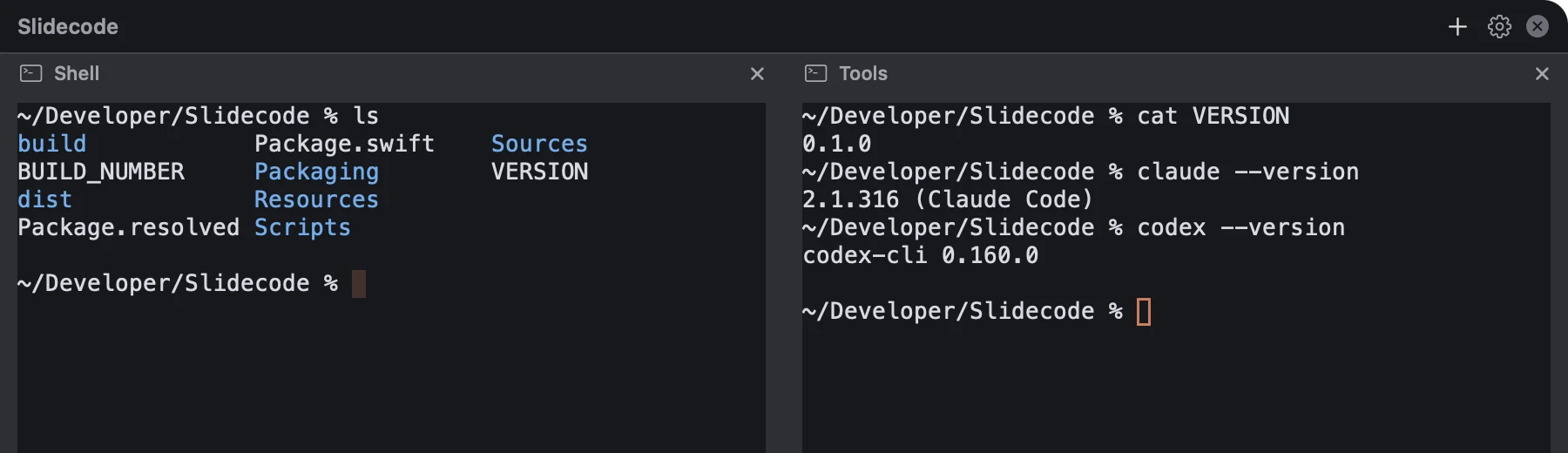
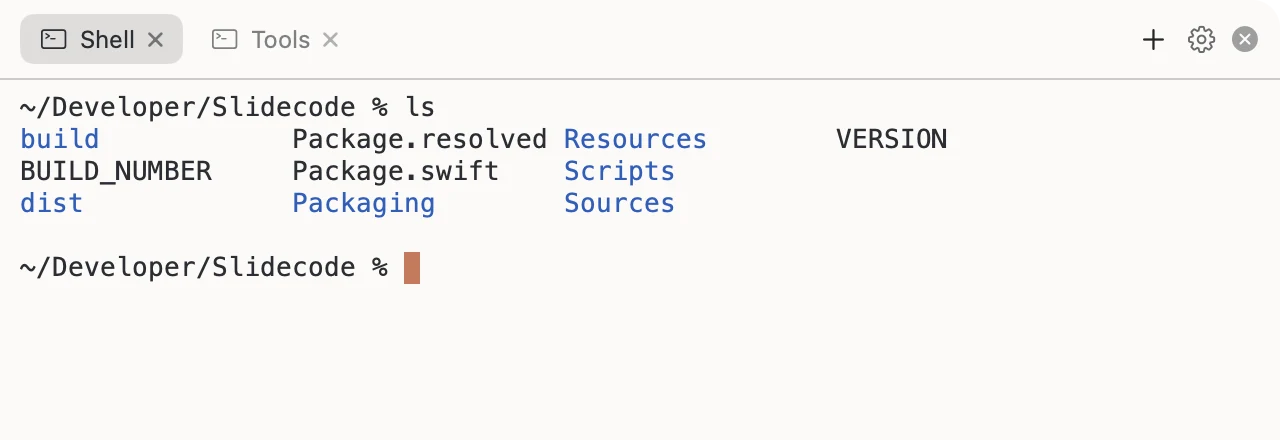
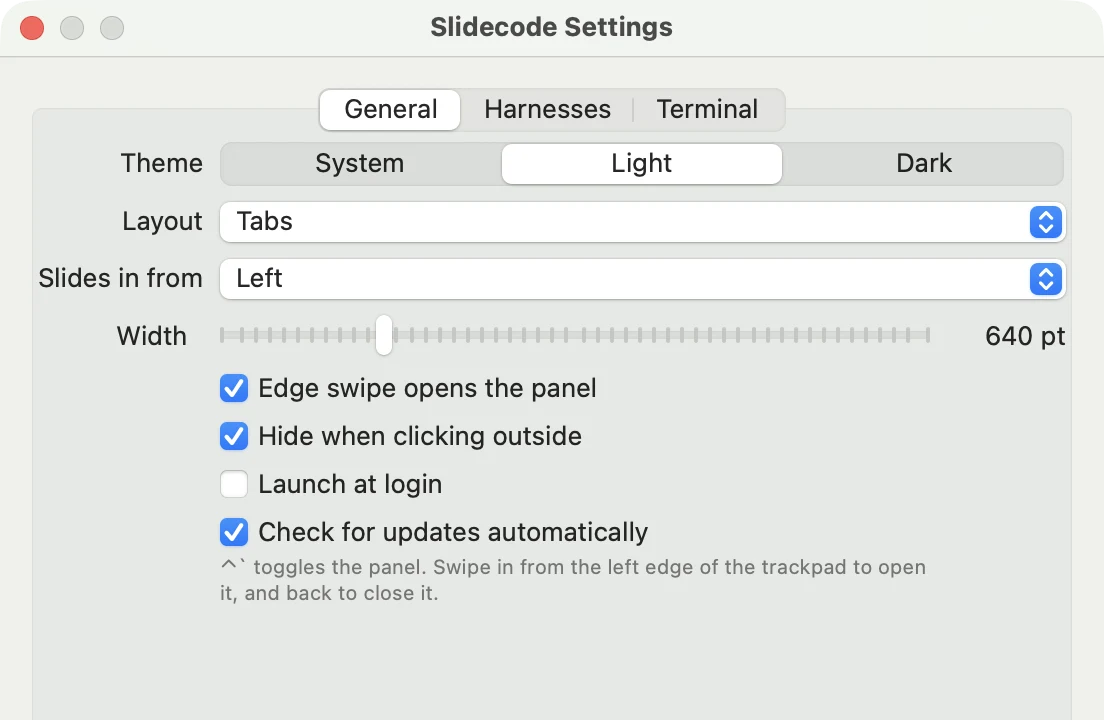
A full-height panel on the edge of the screen.
Left by default, or right. The panel animates in and out, with the two corners away from the edge rounded.
0.1.0From 420 to 1400 points, set in Settings, and never wider than the screen it opens on.
0.1.0It appears on the screen the pointer is on, and takes the full usable height of that screen.
0.1.0Every session keeps running while the panel is away.
0.1.0The app you were using before the panel appeared is brought forward again when it hides.
0.1.0Ways in, and ways out.
Two fingers landing together, one in the outer tenth of the trackpad, both travelling inward. Since 0.1.1 it needs a quick swipe of a quarter of the pad, ignores touches while you type, and a third finger cancels it. Uses an undocumented Apple framework.
0.1.0A two-finger horizontal scroll with the pointer resting at the screen edge, for when the trackpad framework is unavailable.
0.1.0Toggles the panel from any app. Control and the grave-accent key at first; since 0.1.1 Control-Option-Space by default.
0.1.0Record any combination with Control, Option or Command in Settings. It says so when another app already owns it, and keeps the old one working.
0.1.1Toggle Panel, Settings, the update check and Quit, with no Dock icon.
0.1.0A clear two-finger swipe toward the edge, over the panel, sends it away.
0.1.0Clicking in another app hides the panel. A setting turns it off.
0.1.0Real shells, not an imitation of one.
Each session is a shell on a PTY, started as a login and interactive shell so your PATH and dotfiles apply.
0.1.0256 colours and true colour, with the TERM and COLORTERM variables set to match.
0.1.0Any installed monospaced font by name, from 9 to 28 points, applied to every open session at once.
0.1.0A folder new sessions start in. Home when unset.
0.1.0A tab is named by the title the running program sets, and falls back to the harness name.
0.1.0When a session’s program ends, the pane says so and offers Restart or Close.
0.1.0Starting a session from the + menu or ⌘T asks which folder to use, beginning at the last one. Tabs carry the folder’s name. Can be turned off.
0.1.1A dot on the menu-bar icon and the tab, and a macOS notification, when a session you are not looking at rings the bell, goes quiet after real work, or ends.
0.1.1Closing a session, quitting, or installing an update asks first when a program is still running.
0.1.1What runs in the sessions, and how they are arranged.
Claude Code, Codex, Gemini CLI, OpenCode and a plain shell. Claude Code, Codex and the shell are on by default.
0.1.0Add any command with a name, for example an agent you run from the shell, and it joins the new-session menu.
0.1.0Choose which harnesses open on their own the first time the panel appears, when there is nothing saved to bring back.
0.1.0Tabs, side by side, or stacked, switched in Settings without losing a session.
0.1.0Drag a tab or a pane title onto another terminal to put it beside it, below it, or in its place. A highlight shows where it will land.
0.1.1Drag the divider between two panes. Sizes are kept, and a pane cannot be made smaller than a usable size.
0.1.1The kinds of terminal, their folders, their arrangement and sizes are saved and restored on the next launch. The programs start fresh.
0.1.1⌘T opens another, ⌘W closes the current one, ⌘1 to ⌘9 switch between them.
0.1.0Appearance, and how it behaves as a menu-bar app.
Follows the system appearance, or forces either. The terminal palette follows, and every open session is recoloured live.
0.1.0No Dock icon. It can open at login.
0.1.0Checks for a newer version at most every six hours, verifies the checksum and the Developer ID signature, and swaps itself in. Can be turned off.
0.1.0The desktop behind the panel is blurred, and each terminal is a translucent rounded card with a gap of glass between cards.
0.1.1From see-through to solid. Solid, or macOS’s Reduce Transparency, turns the blur off.
0.1.1Settings has a Quit Slidecode button, which asks first if a program is running.
0.1.1Settings warns when the right edge is chosen while macOS’s Notification Center swipe is on, and offers the left edge or the Trackpad settings.
0.1.0